Below is a detailed, practical and original guide that will show you exactly what to watch before installing the application or after it is already on the phone. My main goal is that the reader is able to make an informed decision and reduce the risk of data theft, unwanted monitoring or money loss caused by an unsafe application.
It was always important for me to know exactly what the application was doing on my phone — that’s why I compiled this guide. We will go step by step what to check before installation and how to react if something is smelling. If you want to be quick, read the short checklist; If you want deeper, keep reading.
Android is an open ecosystem that offers a lot of options — but it is precisely this openness that means that malware can sometimes appear outside official channels or even in them. There are tools that help (e.g. Google Play Protect), but they are not a substitute for common sense and careful checking either. The basic things you need to pay attention to are: who is behind the application, what permissions he is looking for, where it was published and how it behaves after installation.
Quick security checklist (before installation)
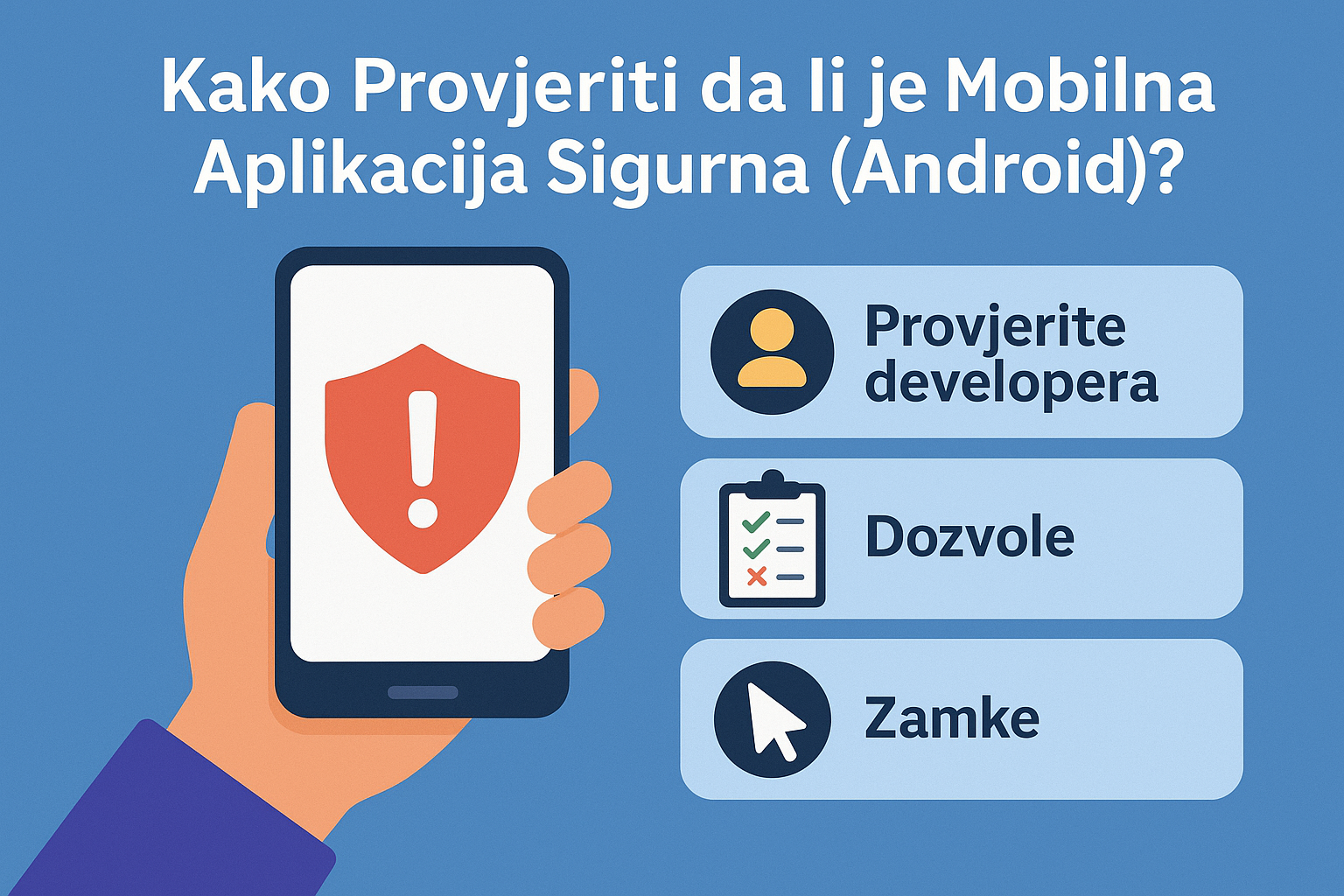
- Check the author/developer of the application (name, profile, web).
- number of installations and reviews — but read and content Review (not just grade).
- When is the last update — a newer update often means that the developer maintains the app.
- what permissions the application is looking for and whether these permissions are justified for the function of the application.
- Is the application in the official store (Google Play) or is it downloaded from another source (Sideload)? If it’s not on Play, be careful.
1) Checking the developer: Who is behind the application?
- Checking method: In the Google Play store, click on the developer’s name (below the title of the application) and see the list of other applications, ratings and contact information (website, email). Reliable developers usually have history, official web and clear support channels.
- Red flags: Developer without profile, no contact, with many applications of the same function with suspicious names or inconsistent branding. Fake developers often copy the logo and name of the more familiar apps with little name differences.
- Tip: If the application claims to be an ‘official’ version of a bank/service, check the bank’s official website — they usually publish a link for official applications.
2) Permissions and why they are important (what is normal and what is not)
Android divides permissions into two large categories: ‘normal’ (low risk) and ‘dangerous’ (dangerous/runtime permissions) that require explicit user permission. Apps that seek access to camera, microphone, location, SMS, calls or stored files should have a clear reason for doing so.
- Practical approach: Please refer to the list of permissions before installation (Play Store shows some of them, and the full list appears on the first use). Ask yourself a question: Why does this app need access to my text messages/calls/location? If there is no answer — do not install or reject the permit.
- Examples of suspicious requests: a calculator that requests access to contacts or SMS; lamp (flashlight) looking for access to a location; A game that asks for permission to read/delete SMS. These are strong indications that the app does more than it advertises.
3) What does ‘sideloading’ mean and why is it risky?
Sideloading means installing an APK file outside of official stores (e.g. downloading from the web). This opens up a greater security risk because in these cases there is not the same level of automatic checks and filtering as on Play. Many devices block installations from unknown sources by default precisely because of this.
-
If you have to sideload:
- Download only from sources with good reputation (eg apkMirror) and check metadata.
- Before installation, scan the APK with VirusTotal (if you don’t know what VirusTotal is — see below).
4) Easy in-store checks — what to look at
- Rating and number of downloads: High rating + high download figures are usually a good sign, but figures can be faked. Also, see the duration of the app’s presence on the Play.
- User Comments: Read the content of the comments — Looking for complaints about unusual ads, unexpected billing, large license queries or unusual behavior.
- App screenshots and description: Weak, generic or stolen screenshots can be a sign of bad application or fraud.
- Contact and website: Responsible developer leaves contact and/or web. If there are none — be careful.
5) APK checking tools and methods (for more advanced users)
If you want an additional level of verification (eg when sideloading or doubt), you can use tools like:
-
apksigner / jarsigner — Use
apksigner verifyto check the signature of the APK; This shows if the APK is signed with the same key as the official version. This is important because legitimate developers usually sign all their versions with the same key. - Virtotal — You can upload an APK file and get scanned with multiple antiviruses. It does not guarantee 100% security, but it is a useful step.
- Decompiling / static analysis — tools like JADX can decompile APK into a more readable form; This requires technical knowledge, but allows insight into suspicious network calls, hardcoded keys, or hidden functionality. (These are not steps for every user, but it is worth knowing about advanced checks.)
Below you can watch the YouTube tutorial on how to scan the application with the help of Virtotal Websites:
6) Features of malicious apps and traps you need to recognize
- excessive permits which do not match the description of the application.
- Apps that display too many pop-up ads or open websites without your action.
- Applications looking for administrator privileges (Device Admin) — This can block uninstall. If the APP requests admin access without a valid reason, refuse.
- Apps that use accessibility service to visit protection — Some malware uses this privilege to read and interact. Do not add permission accessibility unless legitimate functionality requires it (e.g. a screen reader).
- Fake Updates: Sometimes a malicious update replaces a legitimate application (especially with sideloads). Check the update source regularly.
7) What to check immediately after installation (and how important it is to monitor)
- Viewing permissions in settings — Go to Settings → Apps → Select application → Permissions and disable everything that is not necessary.
- Play Protect scanning — Google Play Protect automatically scans applications; Check in Play Store → Profile → Play Protect that it is on and that there is no warning.
- Device behavior: Sudden battery discharge, increased data consumption, or a new icon in the bar may be a sign that the application is doing something in the background.
- Urgent measures: If the app asks for passwords, OTP codes, or asks you to enter sensitive information you should never ask for — uninstall it immediately and change any passwords.
Below is a YouTube tutorial on how to use Play Protect:
8) If you suspect that the application is malicious — steps you need to take
One reader sent me a message: ‘I installed the app because it was at the top of the search — and then strange charges began.” That experience reminded me how important it is to first check the developer and licenses.If anything like this ever happens to you, this section uses this section as an emergency plan to act.
- Disable/deprive suspicious permissions immediately.
- Uninstall the application. If it cannot be uninstalled, make sure that there are administrator privileges and remove them permission before uninstall.
- Start scanning the device with a known mobile antivirus or upload the APK/packetname to VirusTotal for verification.
- Change passwords for accounts that may have been compromised (especially banking and email).
- If you have entered card information — contact the bank and monitor transactions.
- If you are a victim of identity theft or financial fraud, report the case to local police and competent institutions.
9) How to use applications and reduce risk (good habits)
- Install applications only from reliable sources: Google Play, manufacturer’s official site or well-known alternatives (eg, ApkMirror for advanced uses). However, caution should also be taken with these sources.
- Do not give unnecessary permissions — refuse everything that is not necessary.
- Update OS and apps regularly — patches often close security holes.
- Activate Play Protect and automatic security checks.
10) Special section: Banking and paid applications — additional caution
Banking applications and applications that handle finance are subject to greater risk. With a mandatory check of developers and permits, check: additionally:
- Are TLS/HTTPS connections used? (This is technical, but banks usually state this in the documentation).
- Check the authenticity of the application on the bank’s official website (the link from their Help/FAQ part).
- Never enter a PIN or password in non-official applications. If in doubt — contact the bank.
11) “Quick checking” tools that anyone can try
- Google Play Protect — Automatic scanning and notifications. Always turn on.
- Virtotal — Upload the APK file (or enter the SHA-256 hash) and check more AV engine.
- Reviews and forums — Reddit, XDA, phone manufacturers forums often notice unusual behavior earlier.
- Checking permissions in settings — Easy and fast — and can prevent applications from accessing sensitive data.
12) Myths and misconceptions — let’s clarify them
- myth: “If it’s in Google Play, the app is safe.” — It’s not always. Google for verification and has protection, but sometimes a malicious or vulnerable app can pass filters. Always check the developer and licenses.
- myth: “Antivirus on the phone solves everything.” — Antivirus may help, but it is not a substitute for careful behavior and verification of licenses and sources.
13) An example of a practical check flow (step by step, example)
- See the app in the ad — open the Play Store page, read the description and see the developer.
- Check the number of downloads and reviews — read the latest reviews.
- See what permissions it asks for — are they justified?
- If it’s not on the play, don’t sideload unless you check APK (Virotal, signature check). VirusTotal.com
Conclusion — short and practical
The security of mobile applications is not only the job of developers and Google — it is also the task of every user. If you check the developer before installing, read reviews, think about permissions and do not download APK files from suspicious sources, you significantly reduce the risk. For added security, use Play Protect and tools like VirusTotal, and more advanced users can check APK signatures. Timely attention and a few simple steps often prevent big problems.
Do you have a similar story or app that seems suspicious to you? Share in the comments the name of the application and the description of the problem — together we can recognize bad practices faster and help other readers.
Remembering a few basic steps — checking the developer, reading licenses and caution when sideloading — already protects you from most problems. A little attention today can save you a lot of time and nerves tomorrow.
Short summary of useful steps (Mini-Checklist to copy)
- Check the developer and contact information.
- Read reviews (with a focus on content).
- Check the licenses and reject the unnecessary ones.
- Uses Play Protect. Remembering a few basic steps — checking the developer, reading permissions and caution when sideloading — already protects you from most problems. A little attention today can save you a lot of time and nerves tomorrow.
- If you are sideloading, scan the APK on VirusTotal and check the signature.
- If you notice suspicious behavior: Disable permissions, uninstall, scan and change passwords.
Sources (view and links for further reading)
- Google Play Protect — How It Works (Google Support). support.google.com
- Verify Your Developer Identity — Play Console Help. support.google.com
- OWASP Mobile Top 10 (2024) — Mobile Risks and Description. owasp.org
- Android Permissions Overview — Android Developers (Permissions Guide). Android developers
- Apksigner / APK Signature Verification Discussion (StackOverflow / Docs). Stack overflow
- VirusTotal — Scan Files and Apks. VirusTotal.com
- apkMirror — How does safety also work (FAQ/Analysis). apkMirror
- Sideloading risk articles (Samsung Insight, Zimperium). Samsung Business Insights
- News on automatic revocation of permission and Play Protect improvements. The Verge